Installing VΛIN
Eight steps from a fresh Windows 11 install to the playbook applied. About 30 minutes.
Preparation
01Download files & prepare your USB
Get a W11 23H2, 24H2, 25H2, or 26H2 ISO. Disable Defender, then download AME Wizard, the VΛIN 2.0 playbook and Disable Automatic Updates.reg.
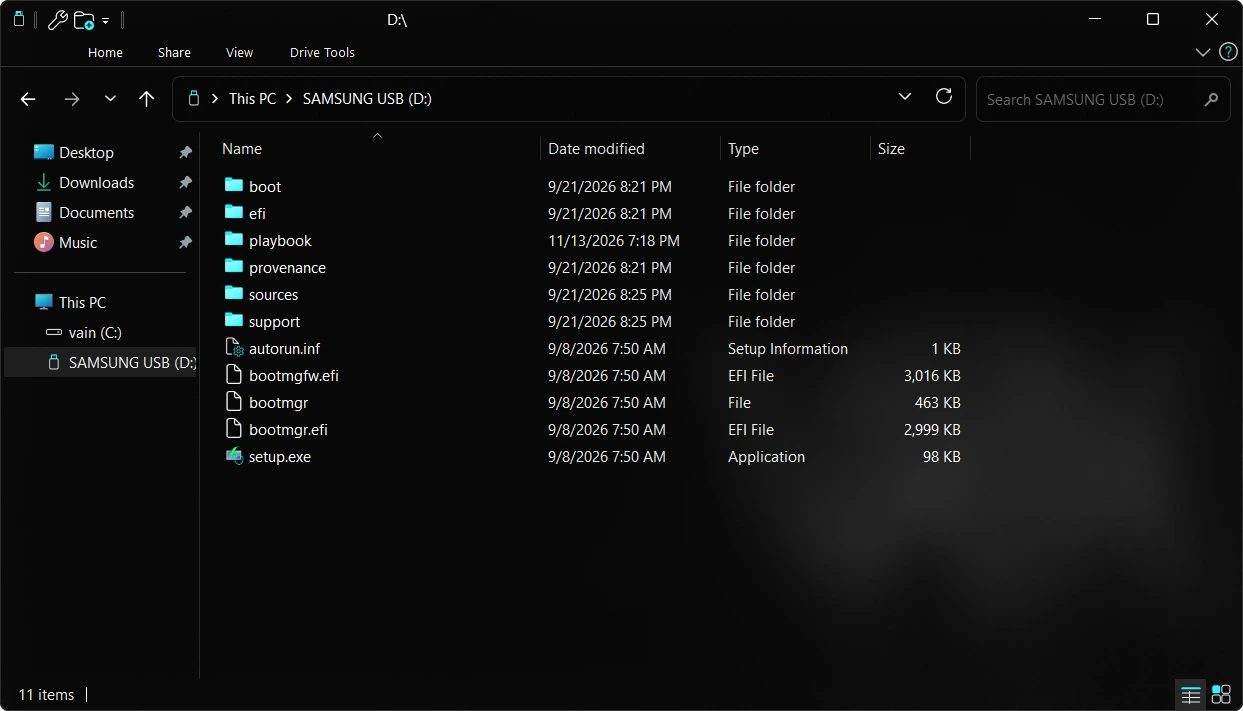
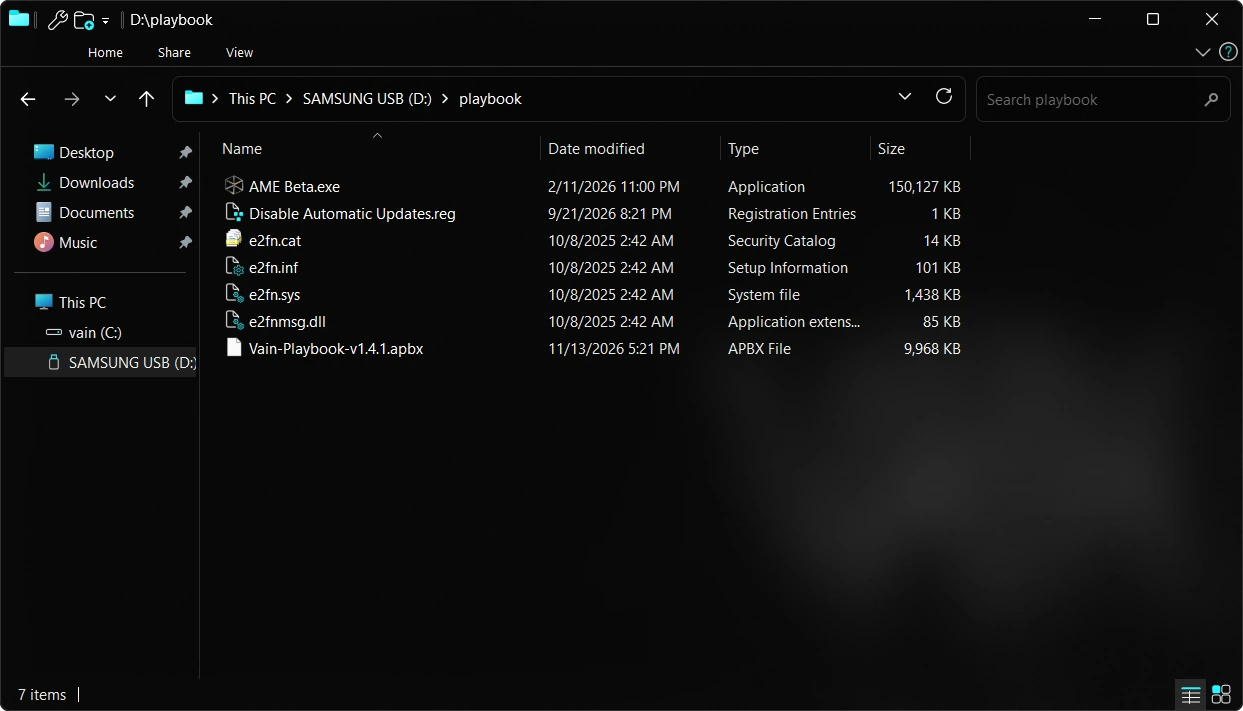
Write the ISO to your USB stick with Rufus or Ventoy, or format the stick as NTFS and extract the ISO onto it. Then create a folder on the USB and place inside: Vain-Playbook-v2.0.0.apbx, AME Wizard, Disable Automatic Updates.reg, and your NIC driver.
Extracting onto NTFS does not work on every motherboard: if the stick does not show up in the boot menu, write it again with Rufus or Ventoy, which boot on any UEFI board.
Installation
02Unplug network & boot from USB
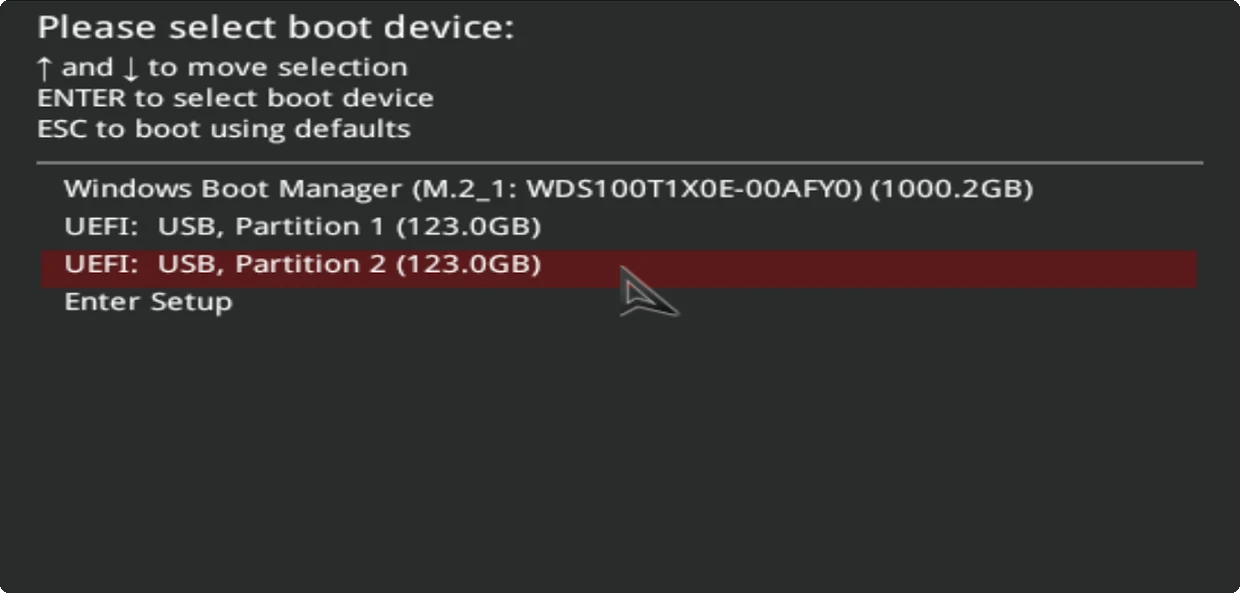
Disconnect your ethernet cable before rebooting: it stays out until step 06. Restart your PC and enter the boot menu using the key for your motherboard, then pick the UEFI entry of your USB stick and press Enter.
- MSI F11
- Gigabyte F12
- ASUS F8
- ASRock F11
03Set up Windows without a Microsoft account
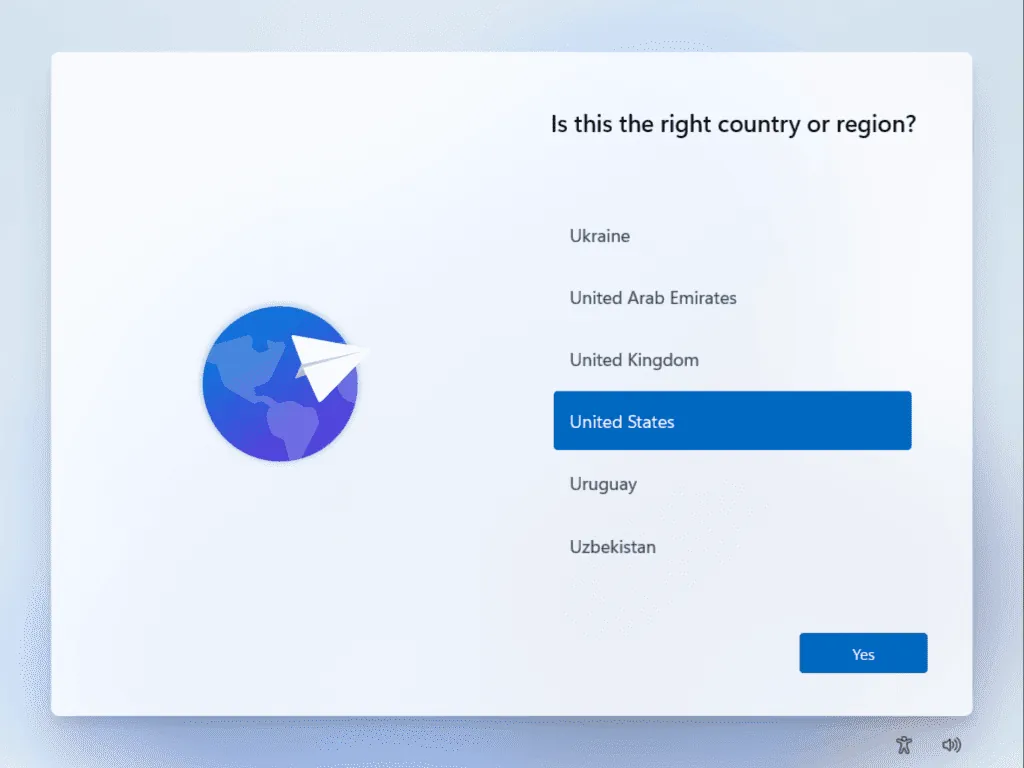
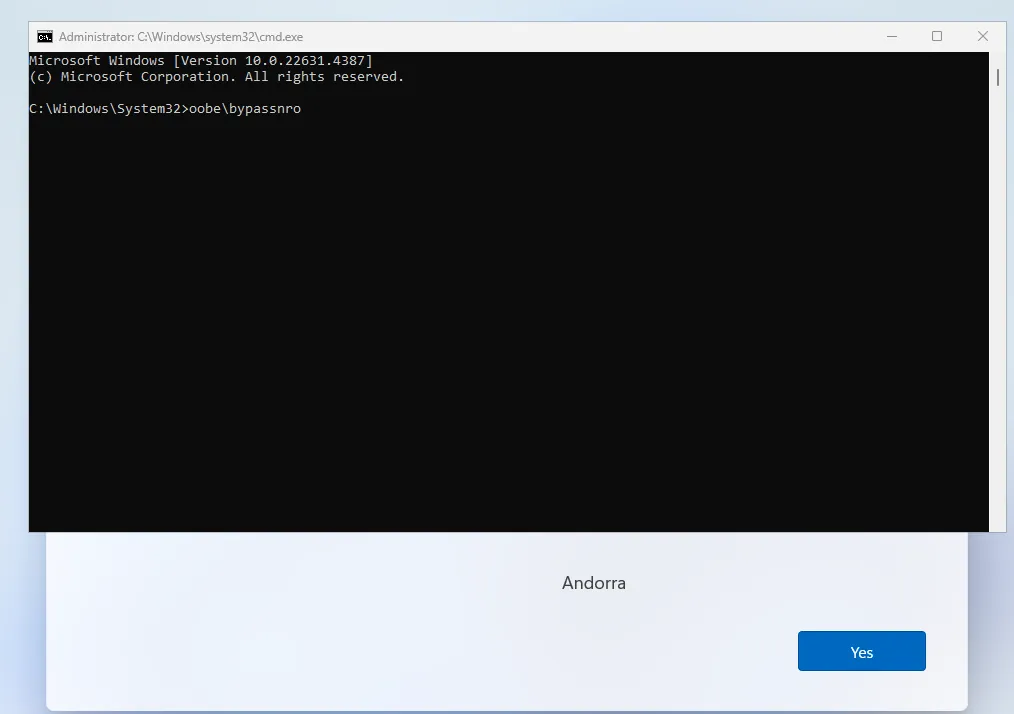
Go through the first setup screens until Windows asks “Is this the right country or region?”. Stop there and do not press Yes.
Press Shift + F10 to open Command Prompt, then run:
- W11 23H2 / 24H2 / 25H2 / 26H2 oobe\bypassnro
- Optional alternative start ms-cxh:localonly
Use a backslash \ in oobe\bypassnro, not a forward slash.
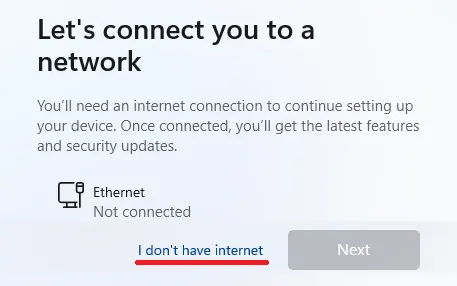
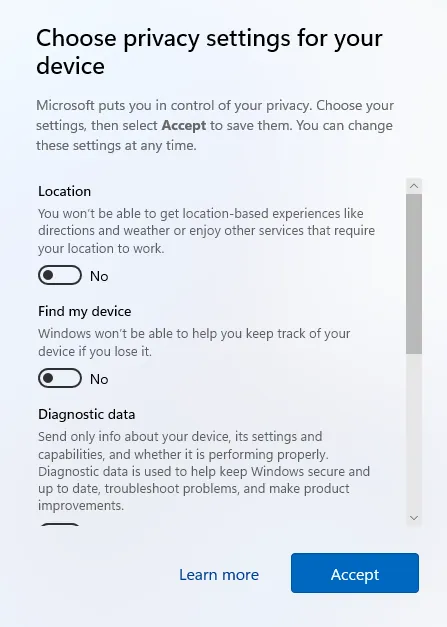
The PC restarts and returns to setup, now without asking for a Microsoft account. On the network screen pick “I don’t have internet”, and on the privacy screen switch every option off.
Pre-playbook setup
04Import the registry file & reboot
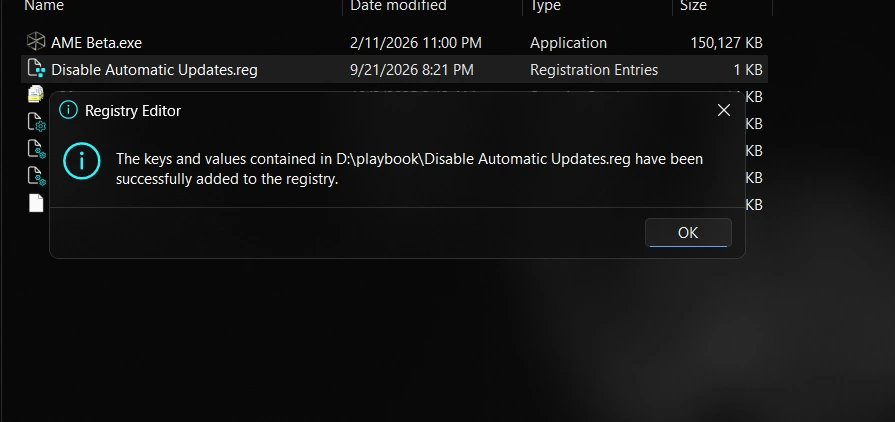
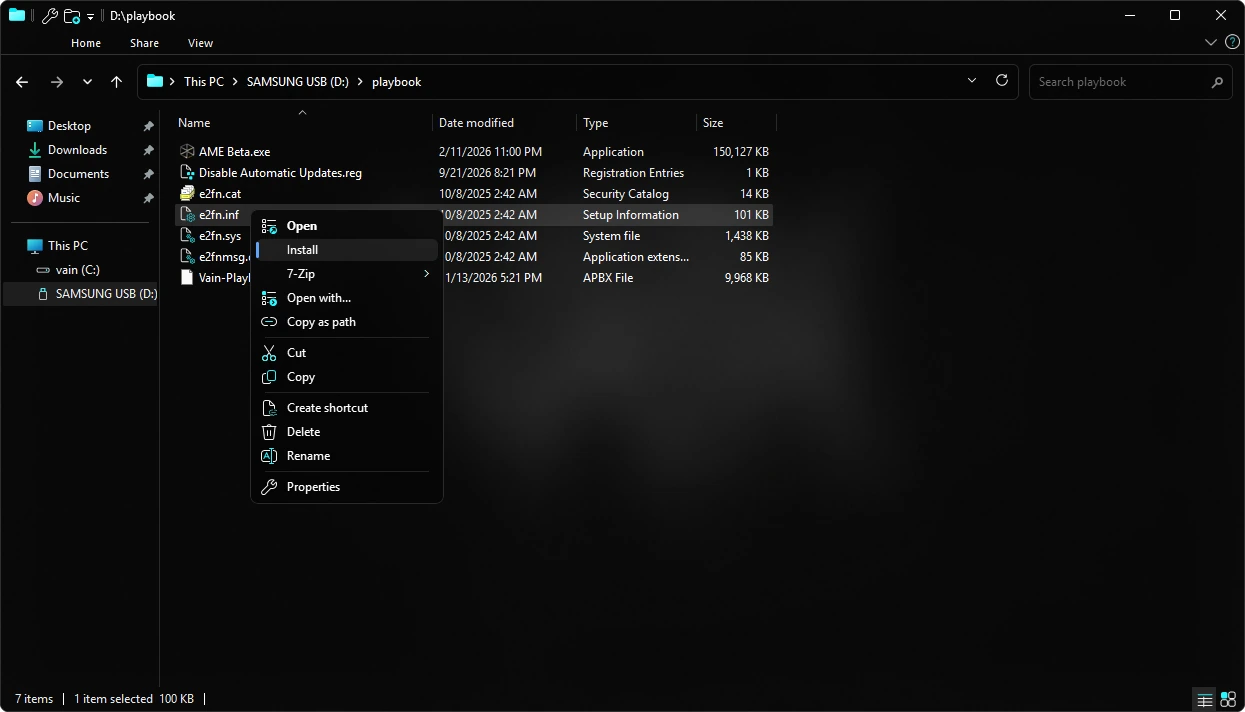
Once on the desktop, open your USB folder and double-click Disable Automatic Updates.reg to import it. Reboot your PC after importing.
05Install the NIC driver
After the reboot, install your network card driver from the USB folder. Stay offline for now: the cable goes back in at the next step.
06Connect to the network
Now plug the ethernet cable back in, or connect to Wi-Fi. AME Wizard needs the internet from the next step on: it downloads the browser you pick.
Only after the reboot in step 04. Windows Update starts downloading updates and drivers as soon as the PC is online. The registry file stops it, but only once the PC has restarted.
Cable in, or Wi-Fi on
- Registry filestep 04
- Rebootstep 04
- NIC driverstep 05
- 4Go onlinenow
Applying the playbook
07Load the playbook & disable Defender
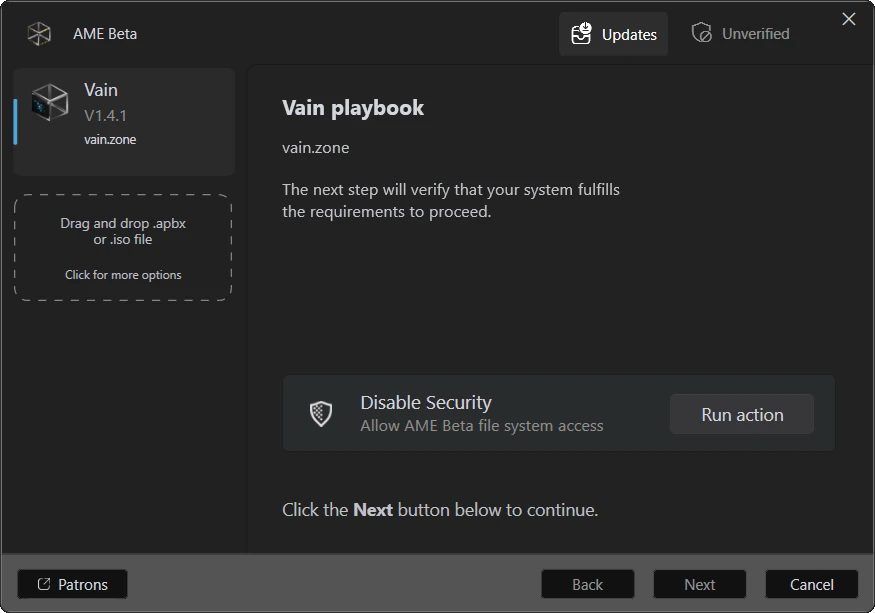
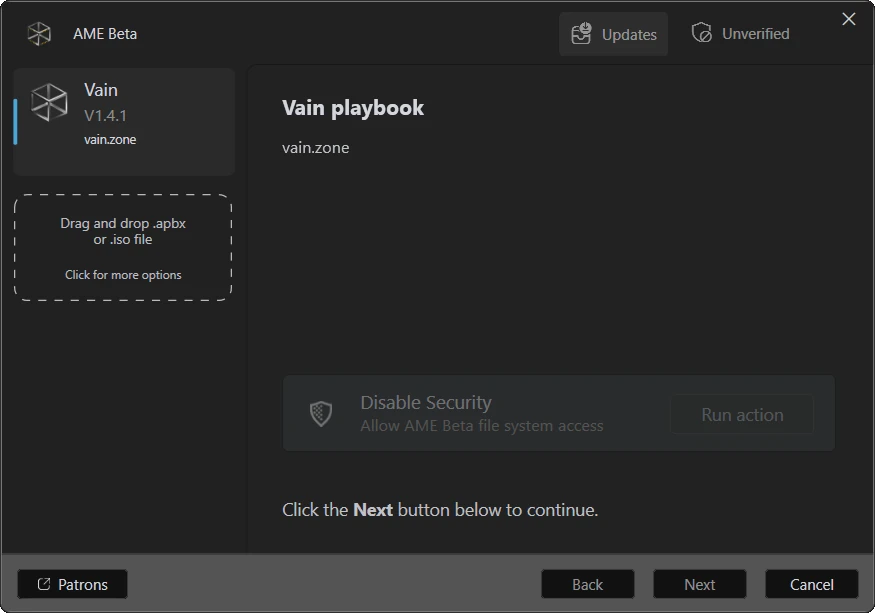
Open AME Wizard and drag Vain-Playbook-v2.0.0.apbx into its window. The playbook shows up on the left as Vain. Press Run action next to Disable Security.
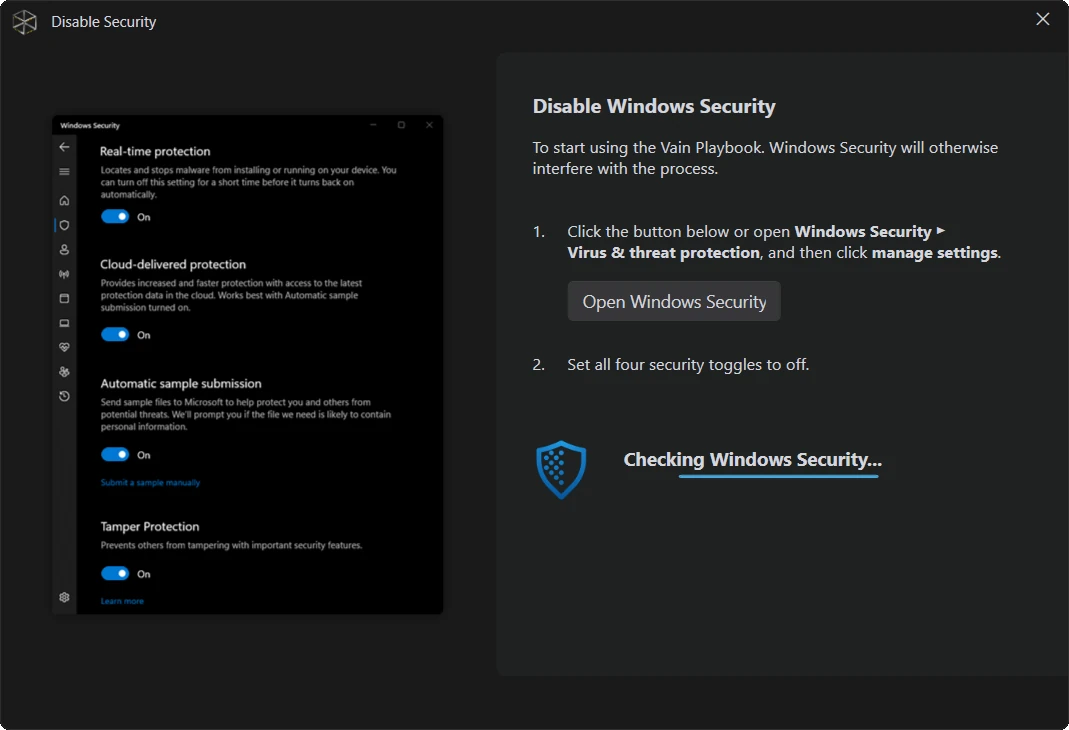
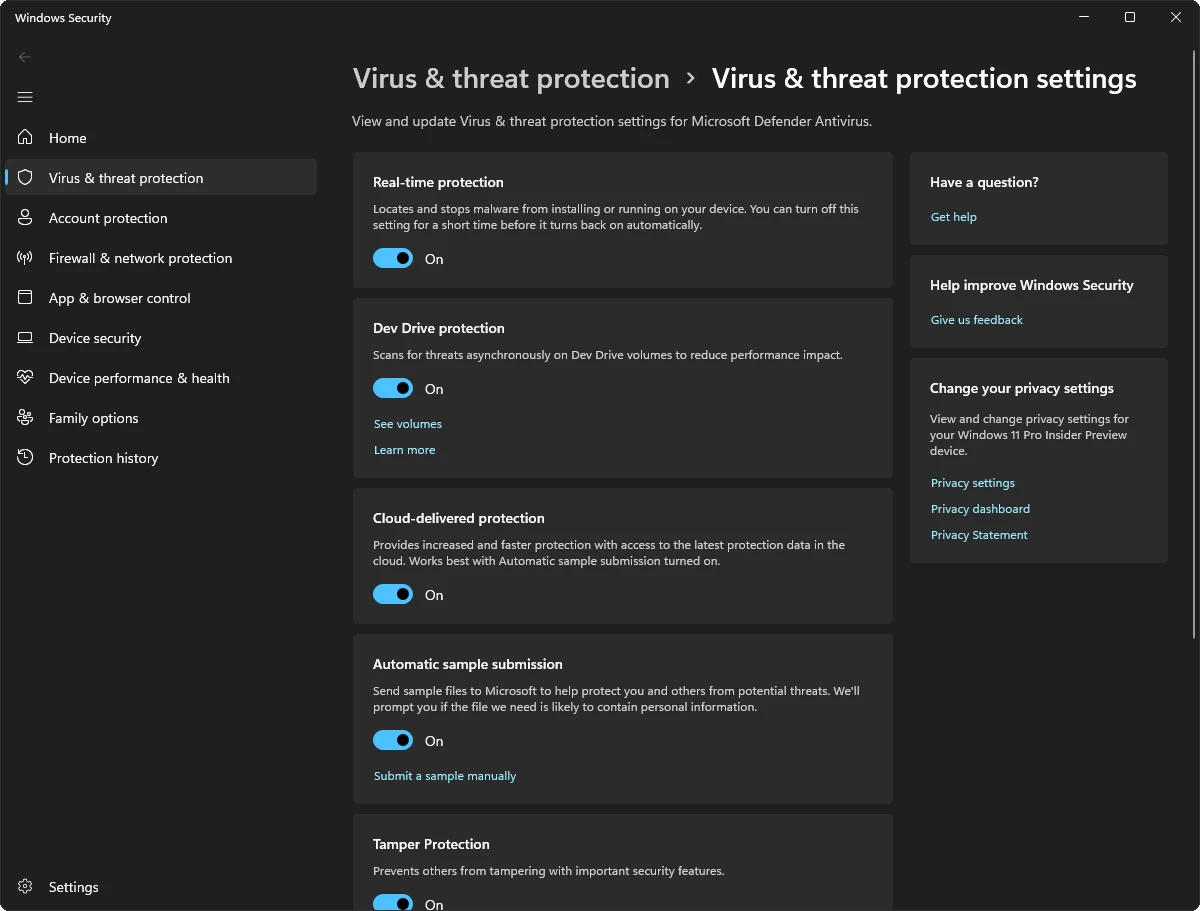
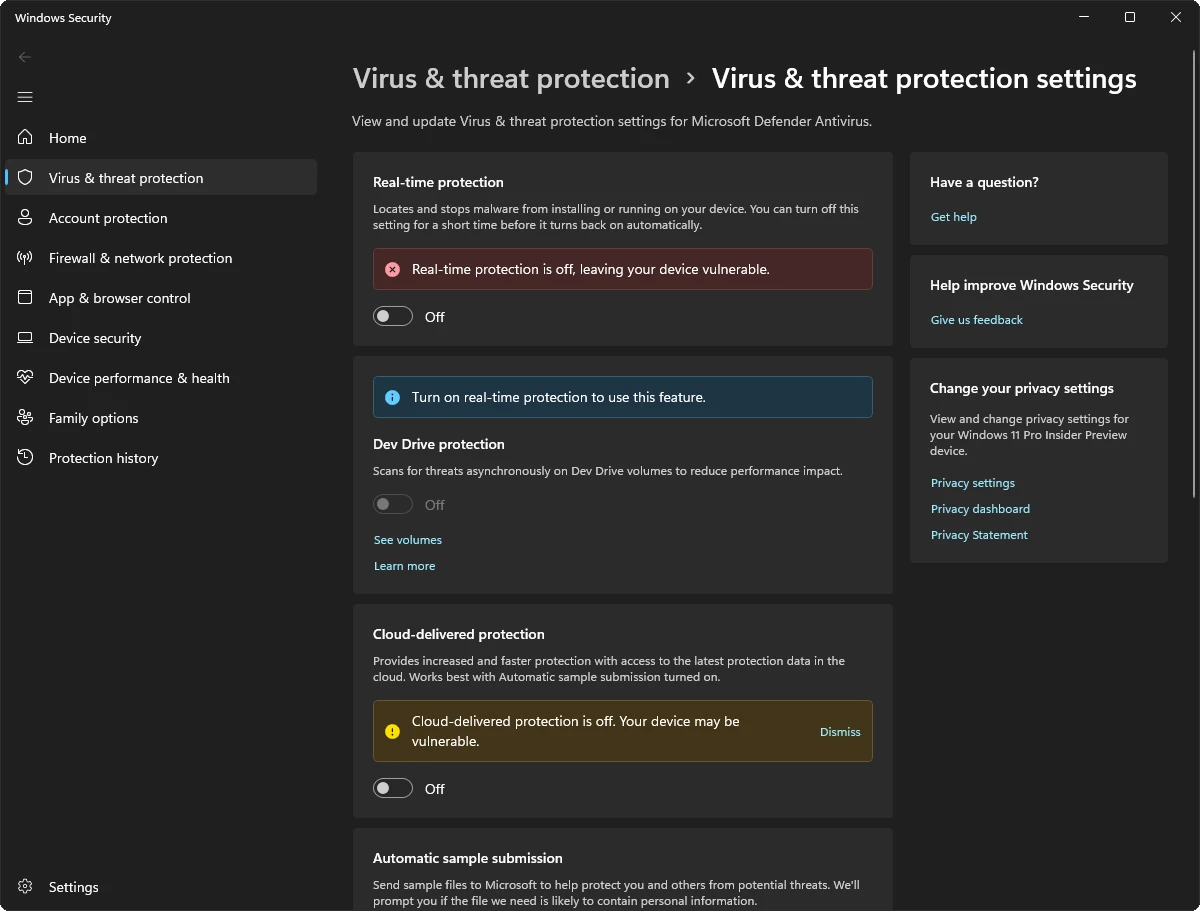
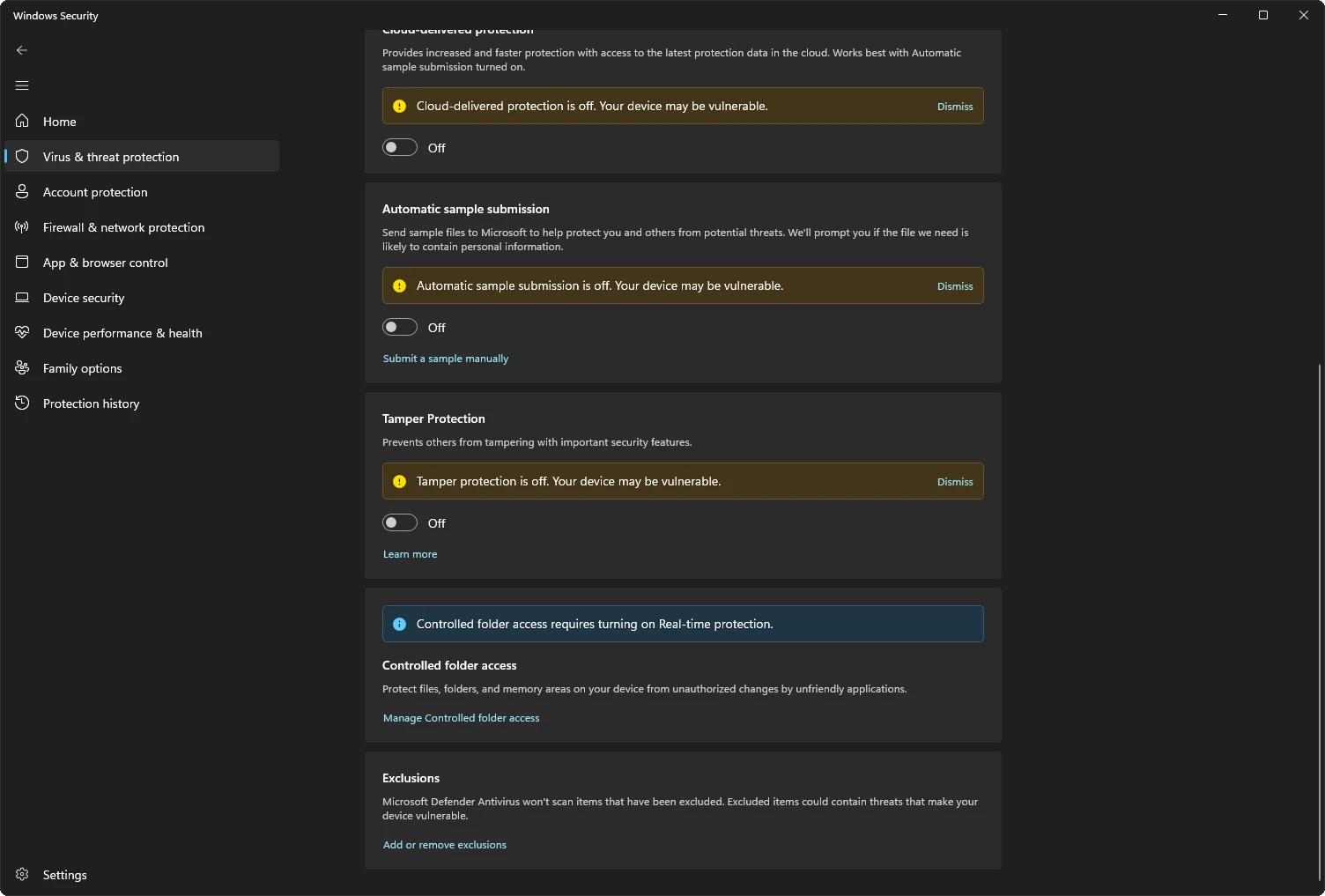
The wizard opens Disable Security and waits. Press Open Windows Security, or go to Windows Security → Virus & threat protection → Manage settings yourself, and switch off all four: Real-time protection, Cloud-delivered protection, Automatic sample submission and Tamper Protection.
Tamper Protection sits at the bottom of the page: scroll down to reach it. With all four off, go back to AME Wizard and press Next.
08Prepare the system & apply
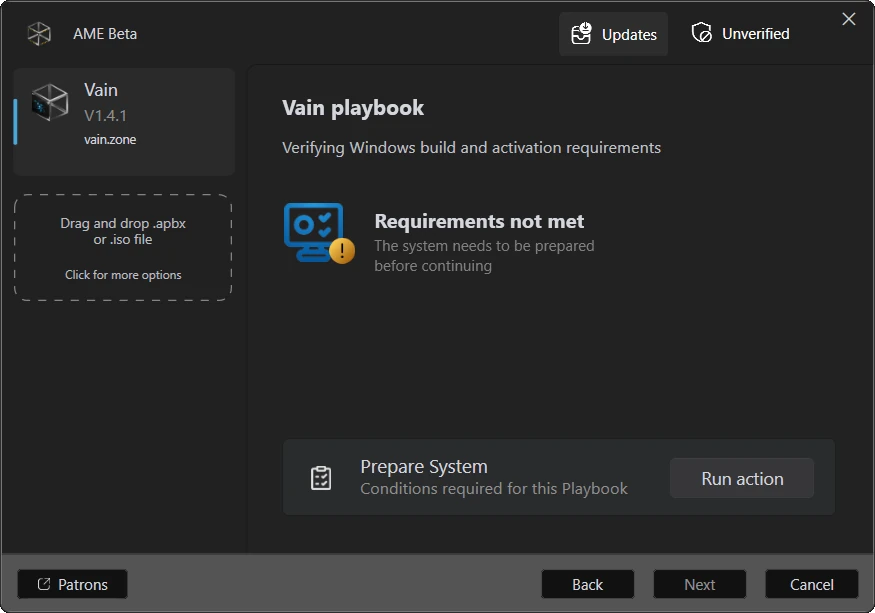
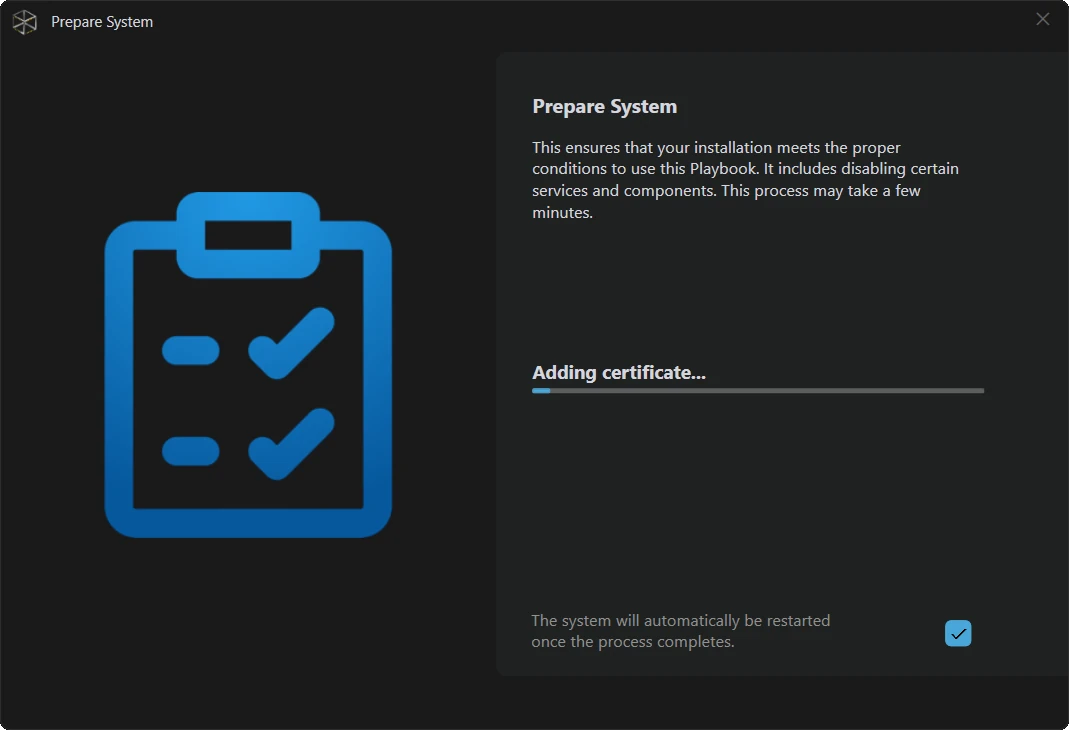
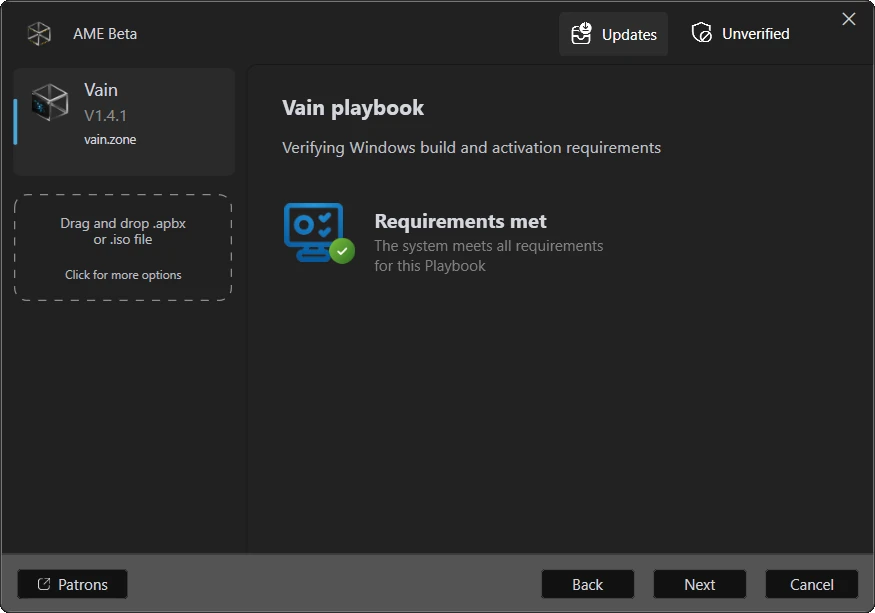
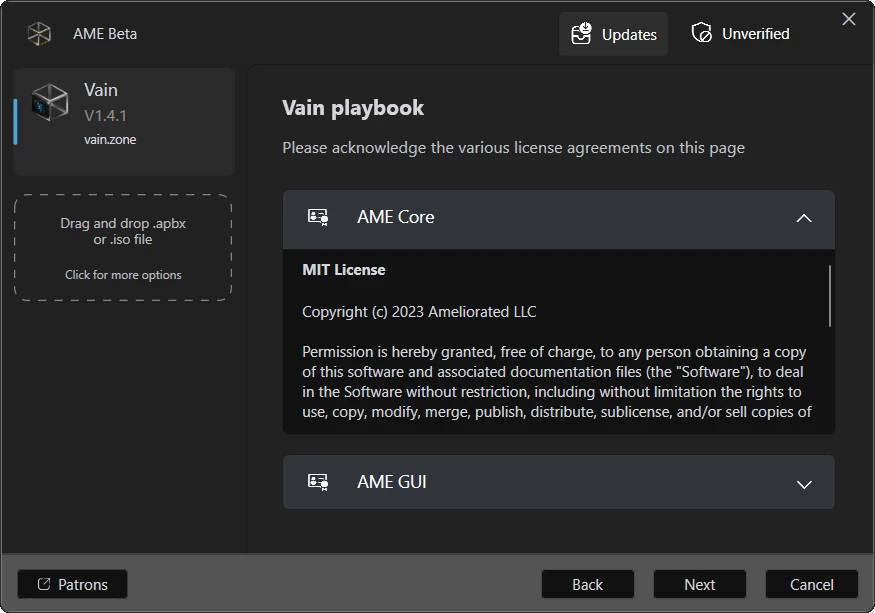
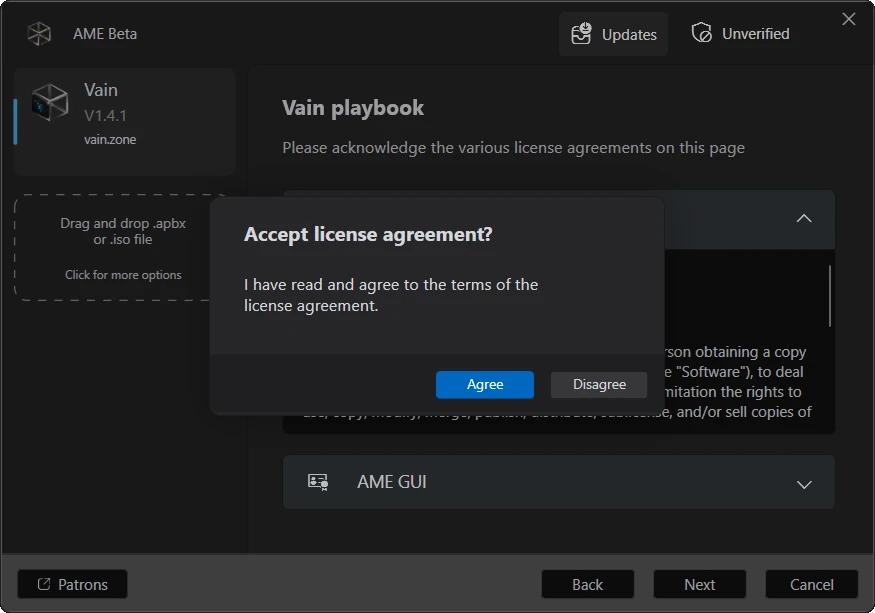
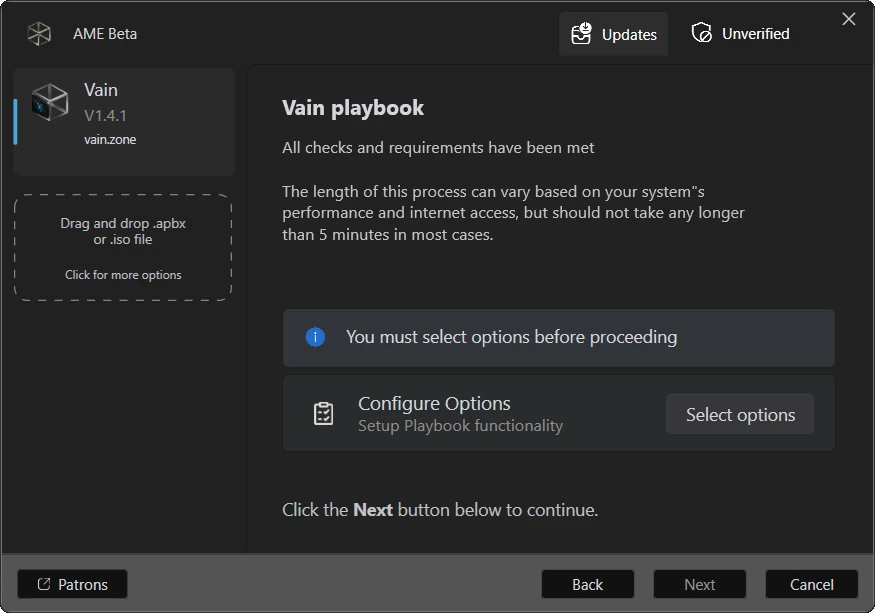
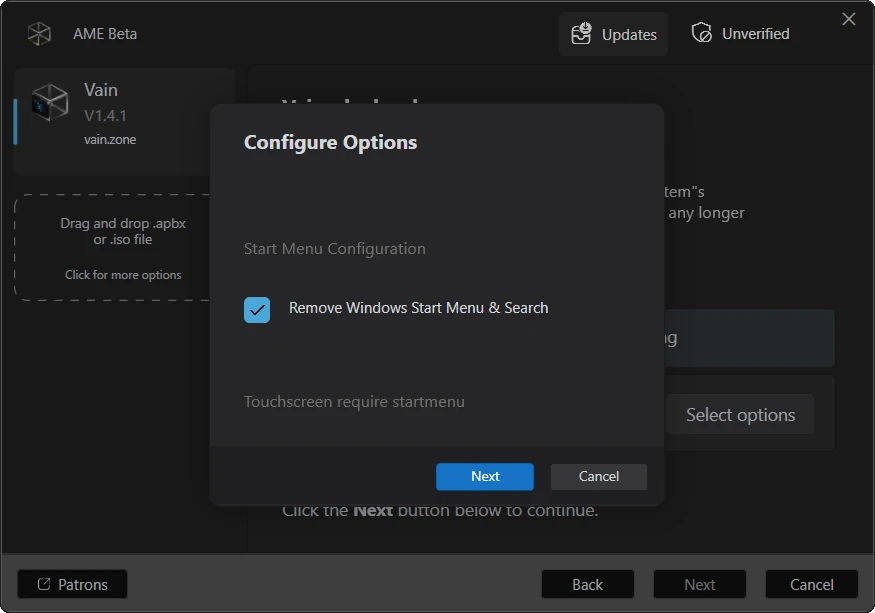
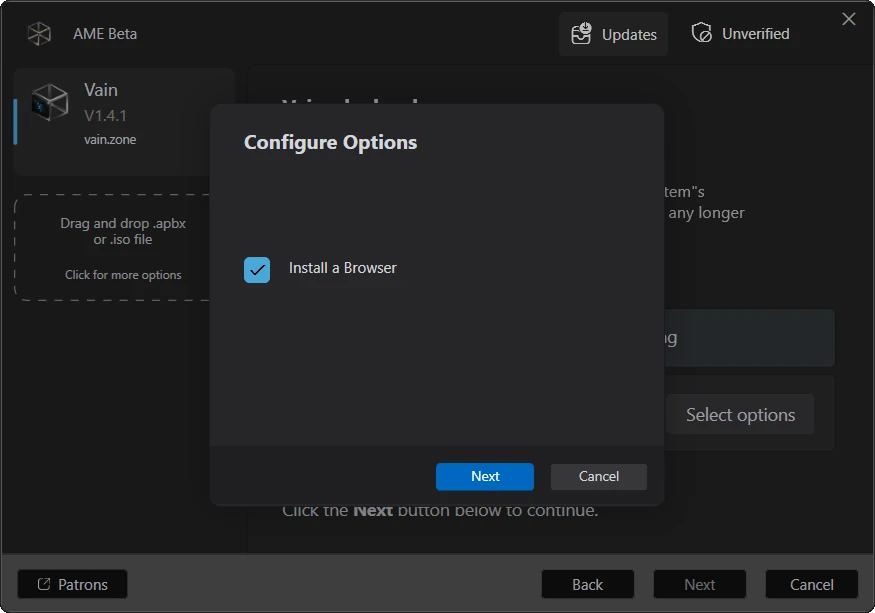
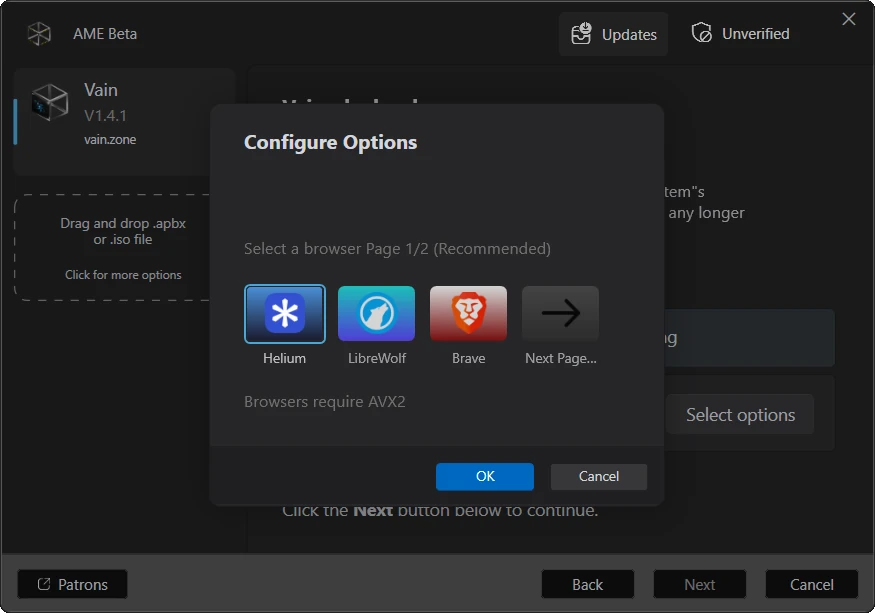
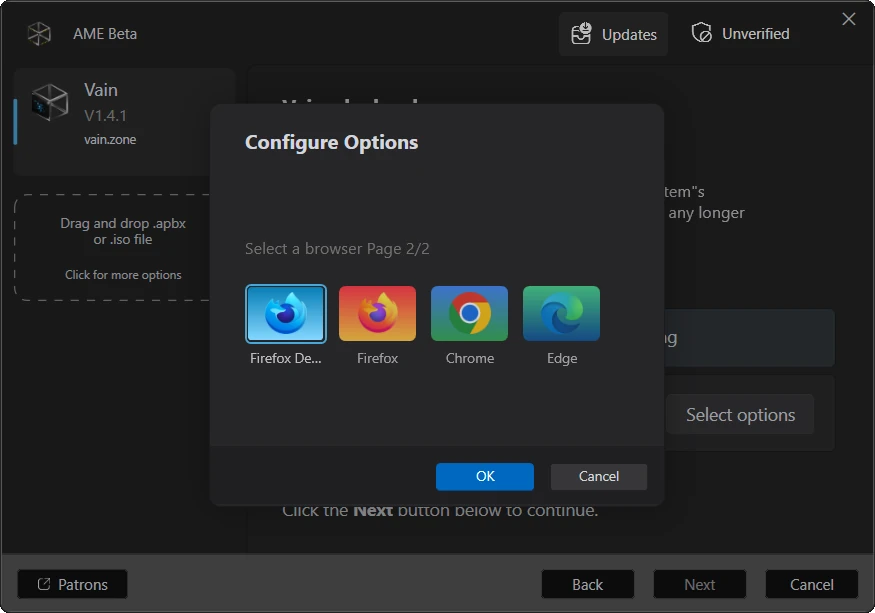
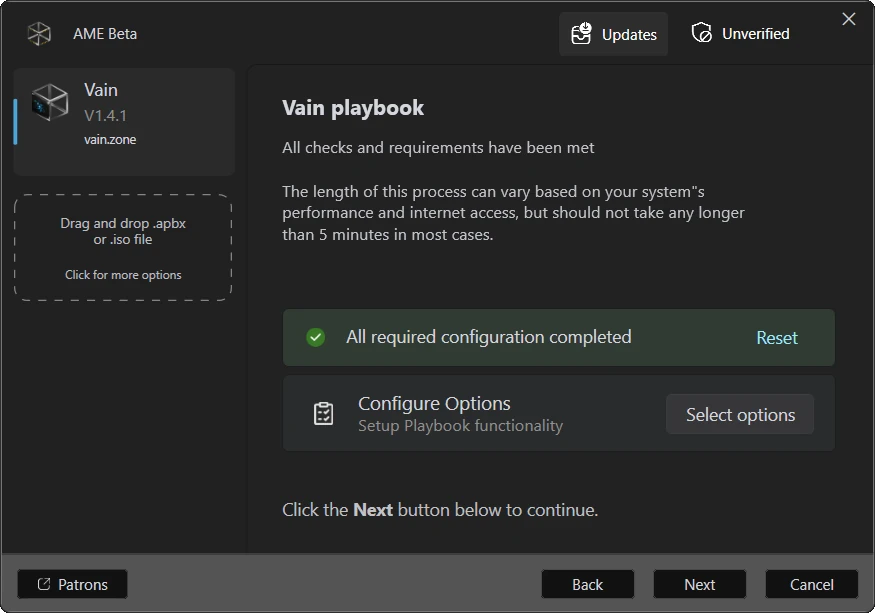
After Next, the wizard checks the system and says Requirements not met: press Run action under Prepare System. It takes a few minutes and restarts the PC by itself. After the restart, AME Wizard says Requirements met: press Next, agree to the licenses and choose your options: the VΛIN Start menu and a browser.
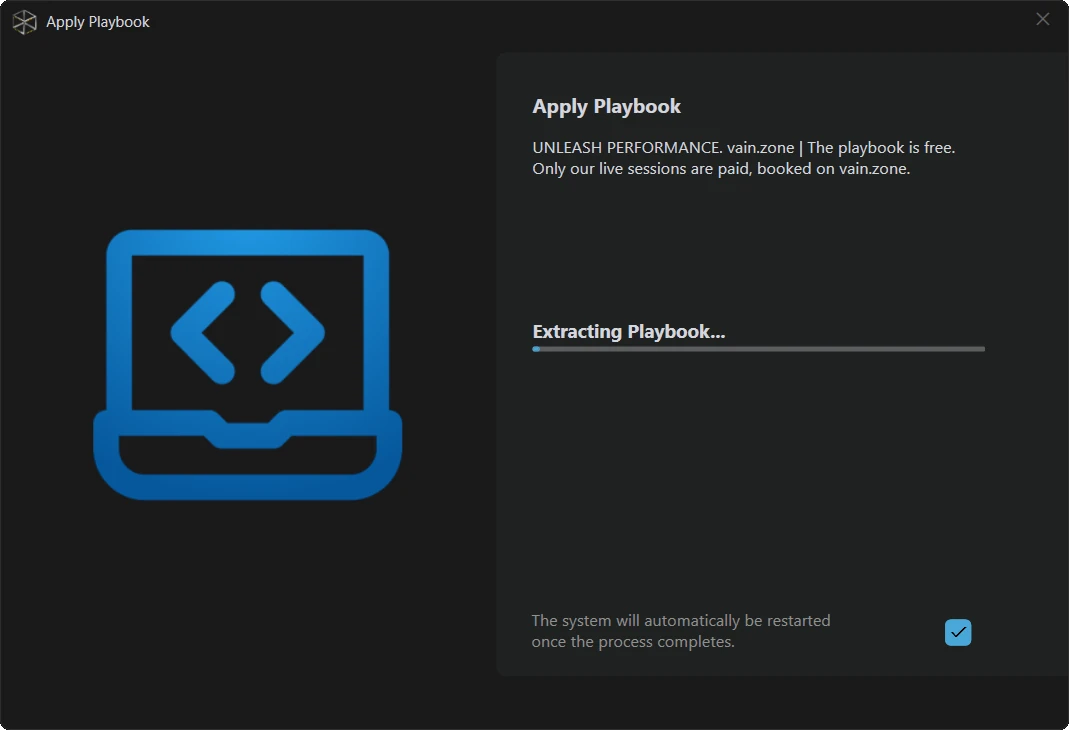
With every option set, press Next to apply the playbook. It takes about 5 minutes, and the PC restarts by itself when it is done.