The VΛIN tools
What the playbook installs, and what each tool does.
The settings that depend on your hardware
The playbook sets everything that is the same on every PC. What depends on your hardware is left to VΛIN Toolbox: one window with a page for each area, from the GPU and its driver to devices and Windows settings.
GPU driver and card settings
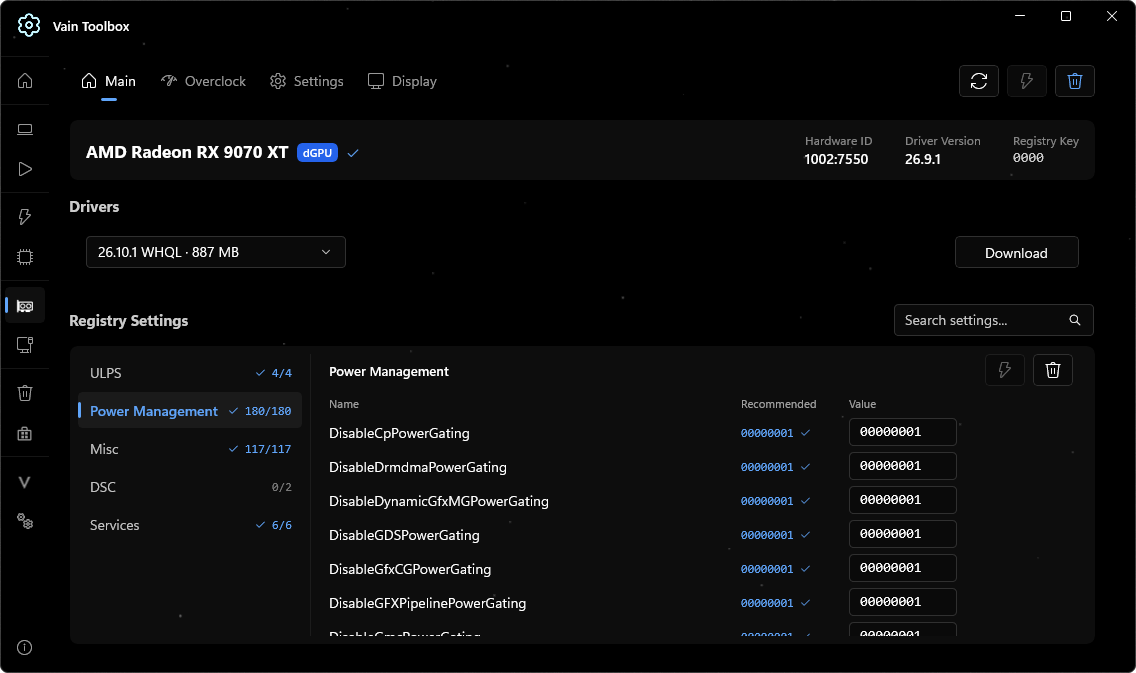
The GPU page recognises your card and shows its status and the installed driver version. Under Drivers, pick a version from the list and press Download. Below it, Registry Settings groups the driver options for the card, such as ULPS and Power Management.
GPU overclocking and the fan curve
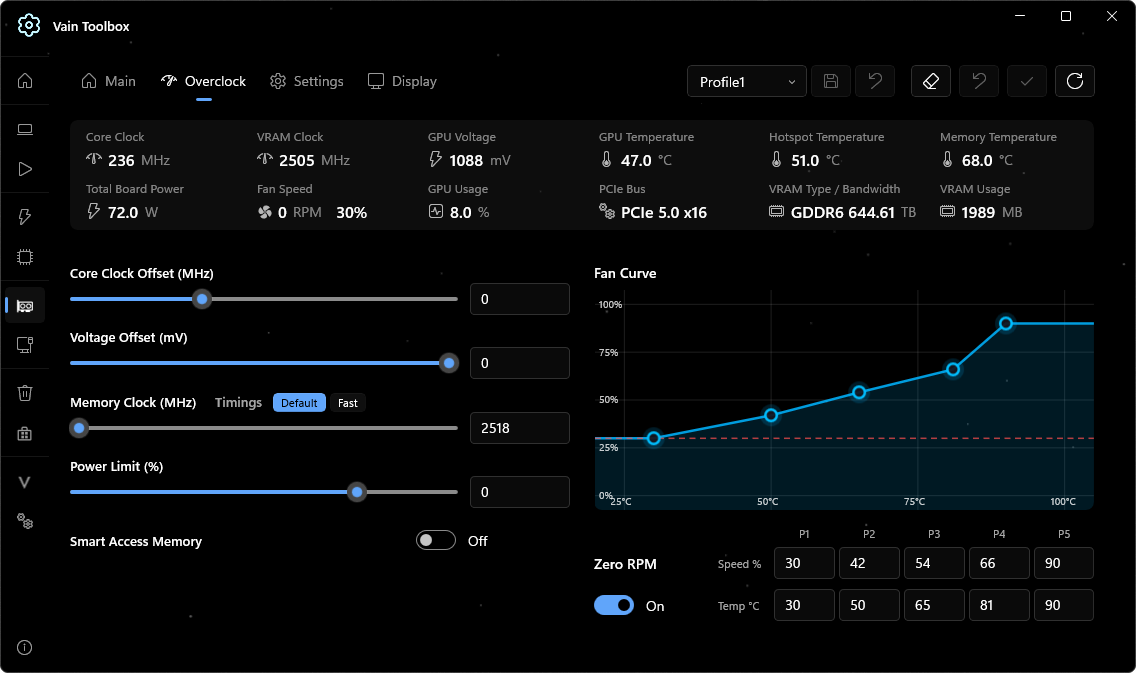
The Overclock tab reads the card live: clocks, voltage, temperatures, board power and fan speed. Below are the core clock and voltage offsets, the memory clock, the power limit and a fan curve you set point by point, with Zero RPM as a switch. Settings are saved as profiles.
The driver’s own settings
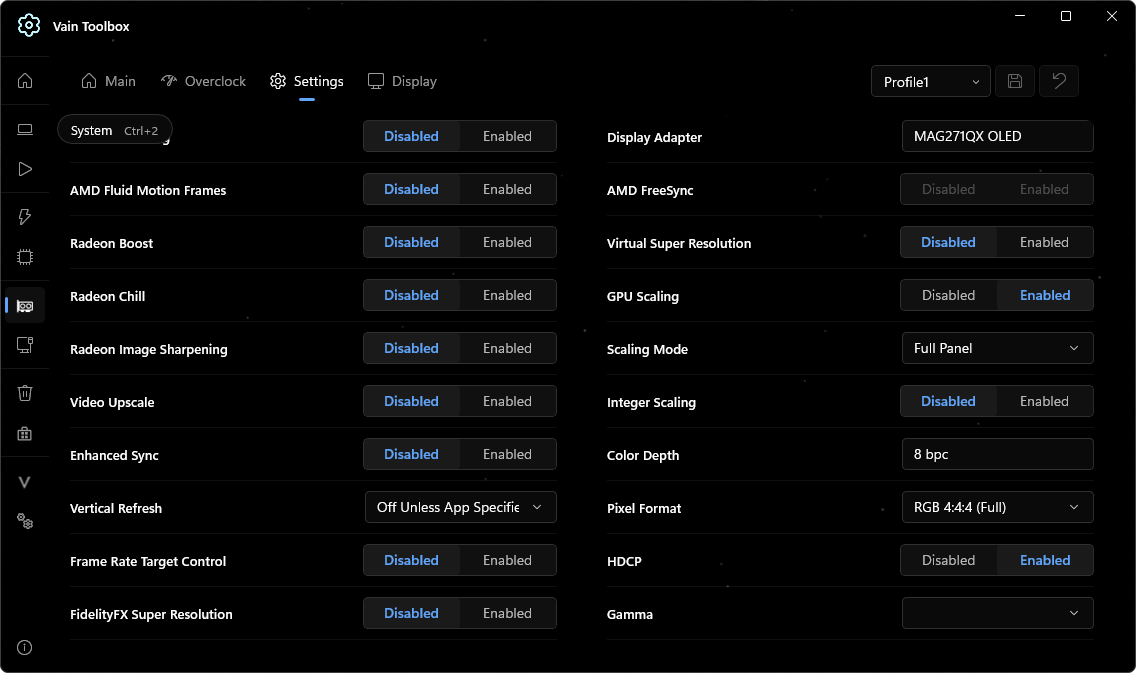
The Settings tab holds the driver’s options in two columns, shown here for an AMD card: on the left what affects rendering, such as Radeon Boost, Radeon Chill, Enhanced Sync and Frame Rate Target Control, on the right the display, from FreeSync and GPU scaling to color depth and pixel format. They are saved as profiles too.
Interrupt affinity for every device
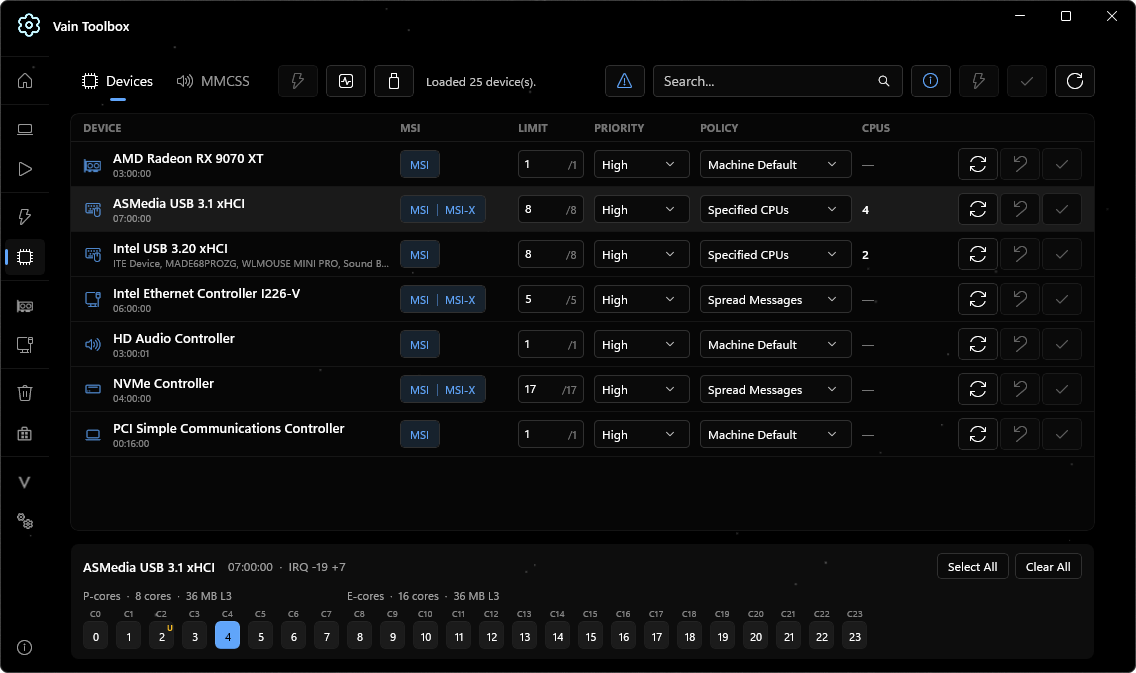
The device page lists each device with its interrupt policy, the modes it supports and its priority. Optimize sets all of them in one pass, and each row opens if you want to set a device by hand.
Pick the cores yourself
Select a device and the panel at the bottom lists every core, P-cores and E-cores apart. Click the ones that should handle its interrupts.
Network adapter settings
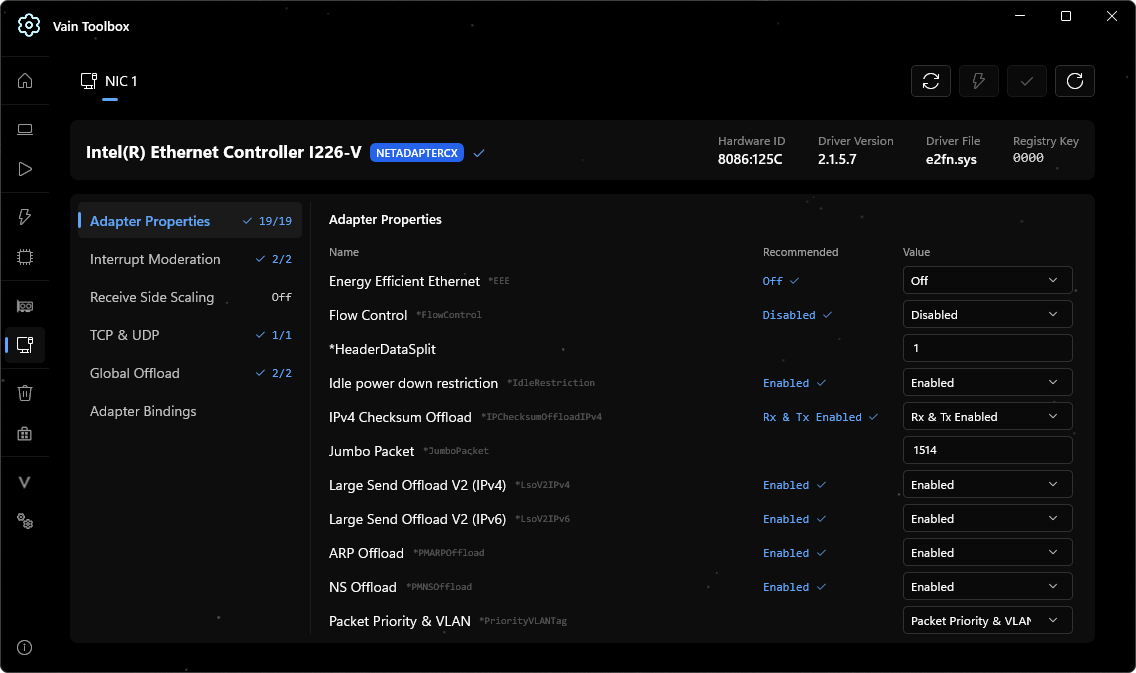
The NIC page lists the adapter’s driver properties next to the value VΛIN recommends for each: Energy Efficient Ethernet, flow control, checksum and large send offloads, interrupt moderation, Receive Side Scaling. The counter beside each group shows how many already match.
The power plan, setting by setting
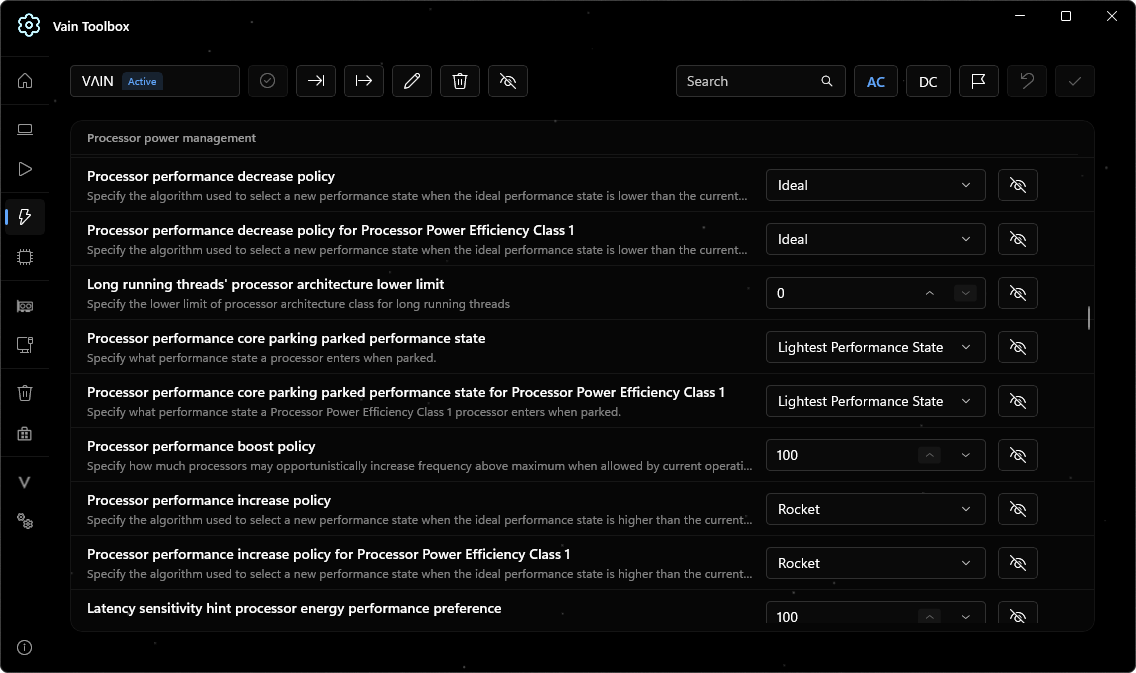
The power page opens the active plan, VΛIN’s own by default, and lists its settings with their descriptions: processor performance policies, core parking, boost. AC and DC switch between the plugged-in and battery values.
Windows performance settings in one list
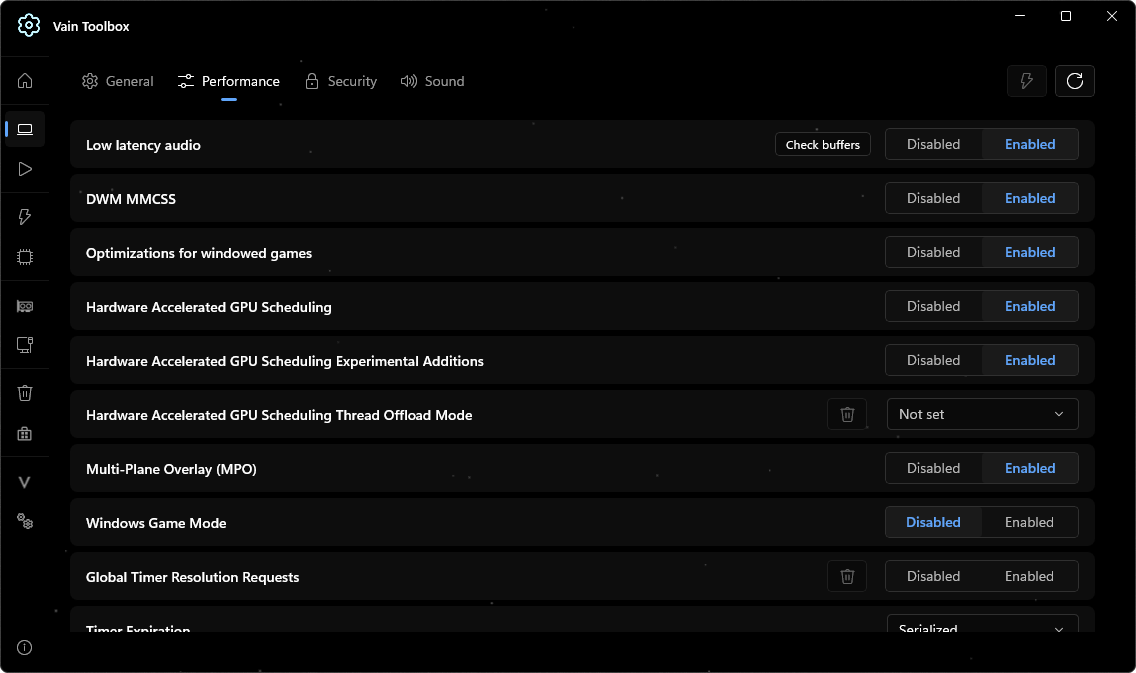
Settings → Performance holds the switches that otherwise mean a registry edit: HAGS and its experimental additions, Multi-Plane Overlay, Game Mode, timer resolution and tick scheduling. Vain Defaults returns the page to the values VΛIN ships.
Search and install apps
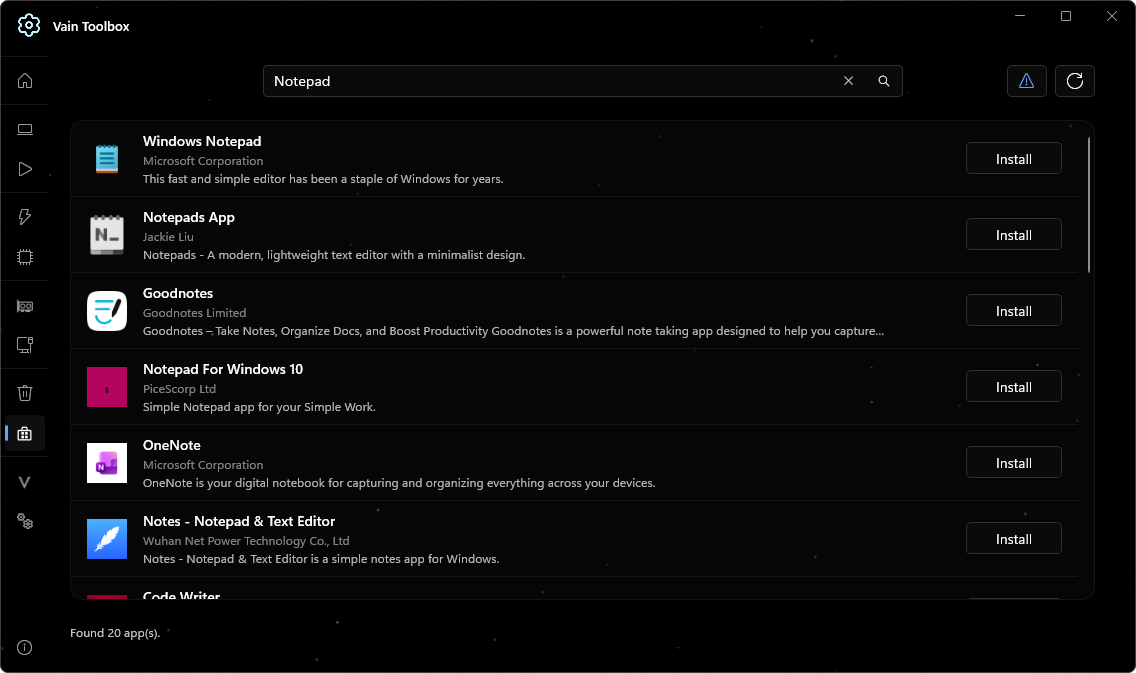
Type an app’s name and the page lists the matches with their publisher and description. Install downloads and installs the one you pick.
A task manager built around priorities
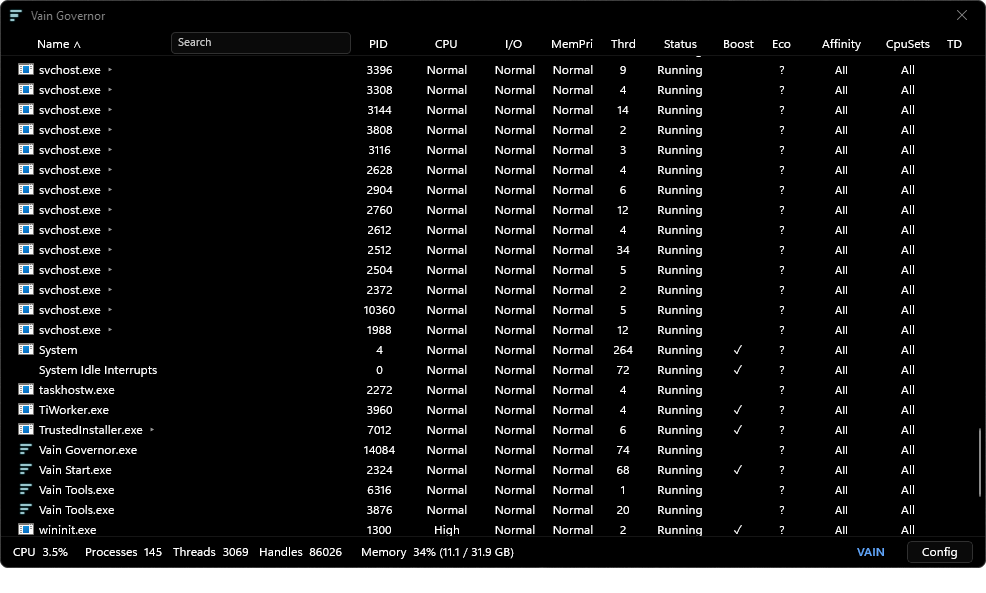
VΛIN Governor lists every process with its CPU, I/O and memory priority, thread count, priority boost and affinity, and opens any process down to its threads.
Rules for each process
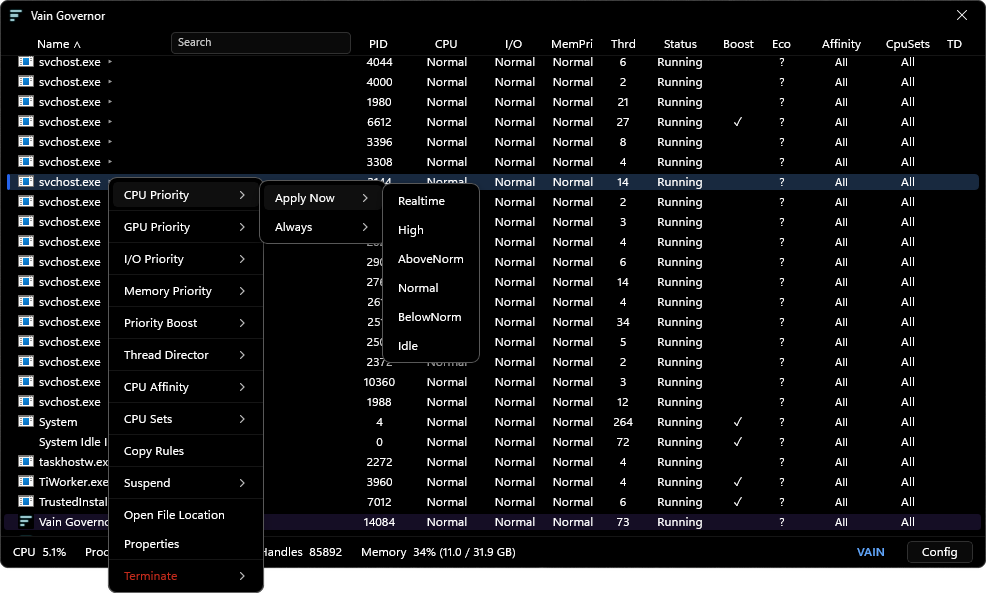
Right-click a process to set its CPU, GPU, I/O and memory priority, priority boost, CPU affinity and CPU sets. Thread Director marks a process as a game or as background work, either once or every time it runs.
Every thread of a process
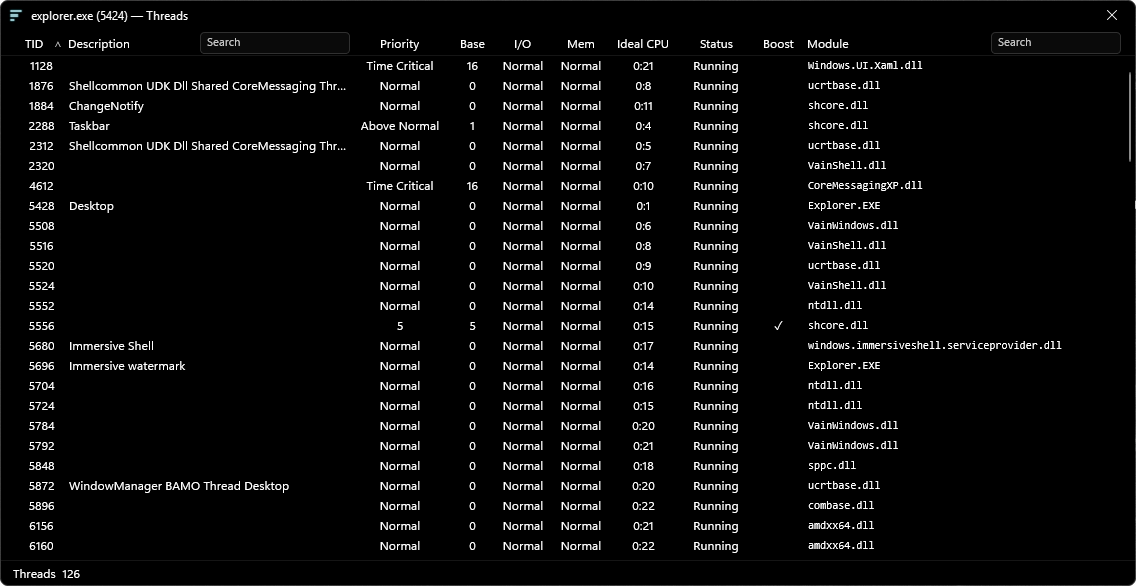
Open a process and Governor lists its threads: priority and base priority, I/O and memory priority, the ideal CPU, the state, and the module each thread runs from.
Saved rules
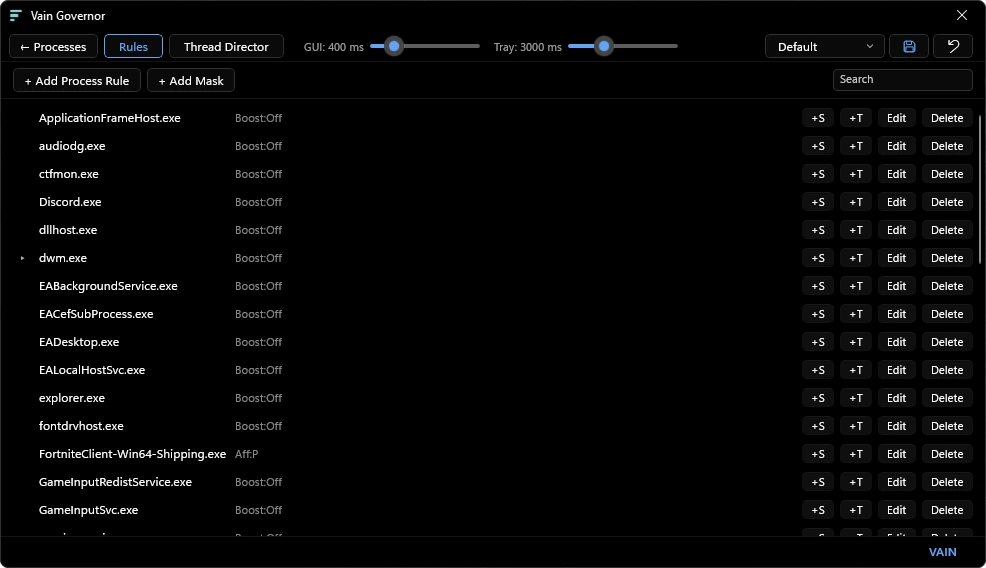
Rules is the list of processes with saved settings, applied every time the process starts. Rules can be edited and deleted, and the whole set saved as a profile.
Thread Director and the cores
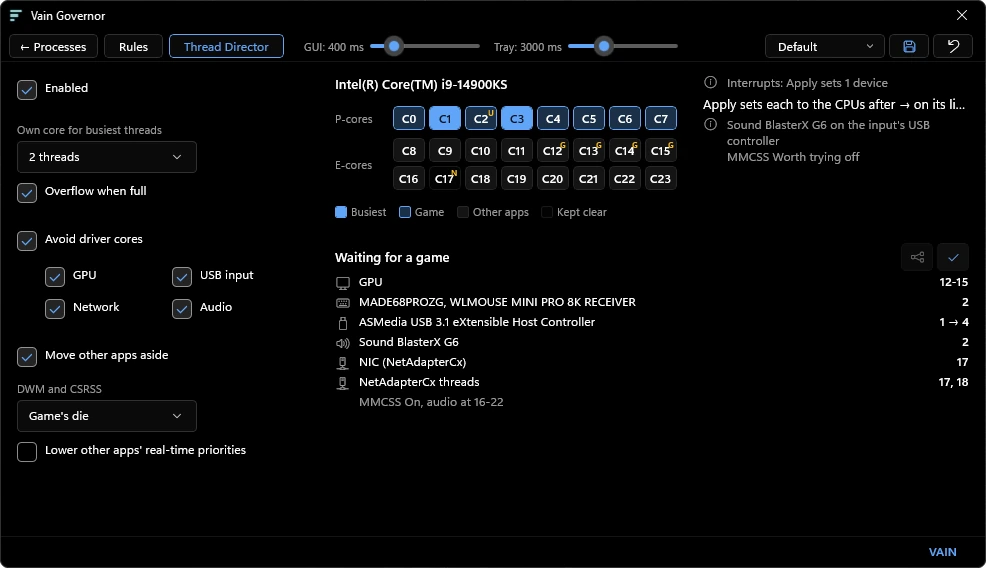
Thread Director sets how a game is placed: its busiest threads get cores of their own, other apps move aside, and the cores that serve the GPU, network, USB input and audio drivers are avoided. The map in the middle shows which cores go to the game, which to other apps and which are kept clear.
VΛIN Tools
A command-line loader that controls VΛIN Governor and takes standardized system screenshots.
Taskbar and File Explorer
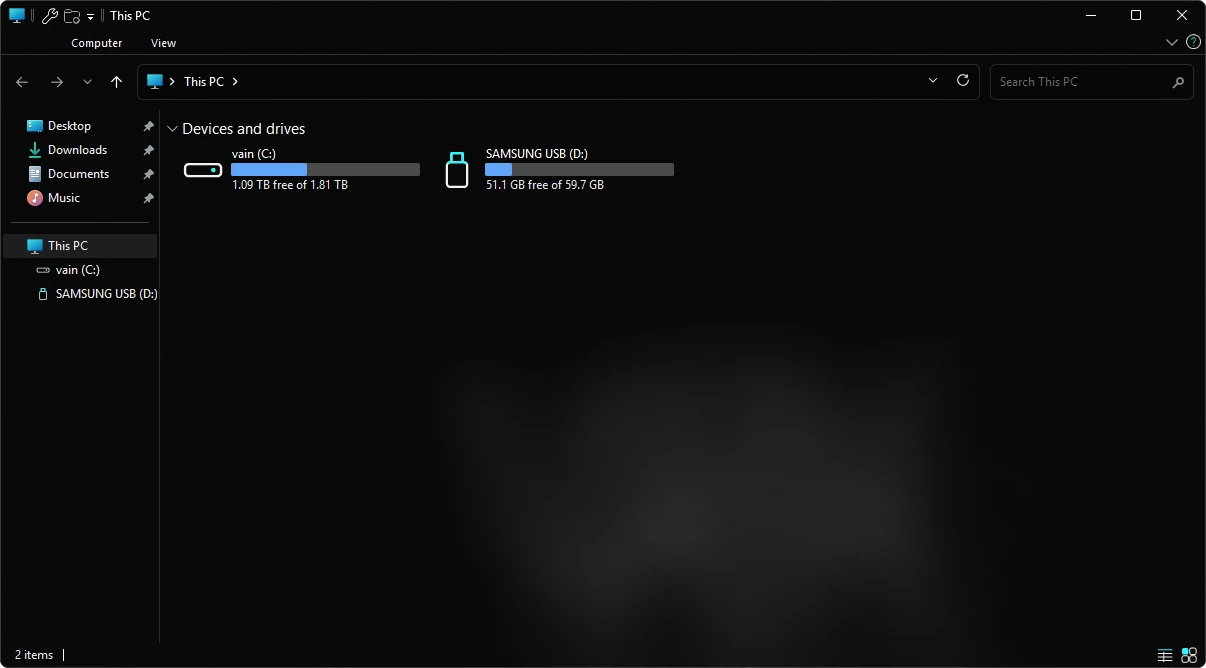
The shell adds a custom taskbar and File Explorer: a compact ribbon, and context menus with an icon on every entry.
Classic windows in the same style
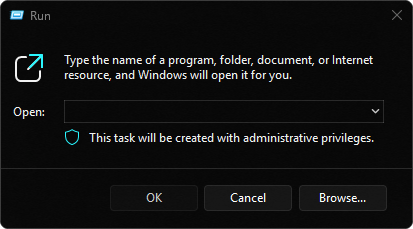
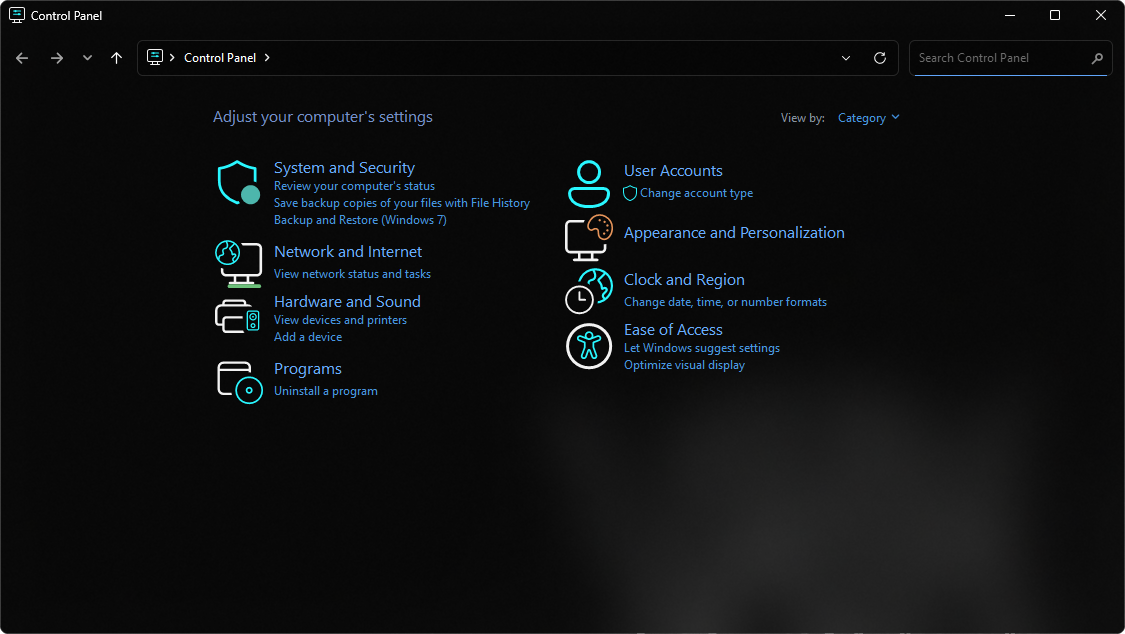
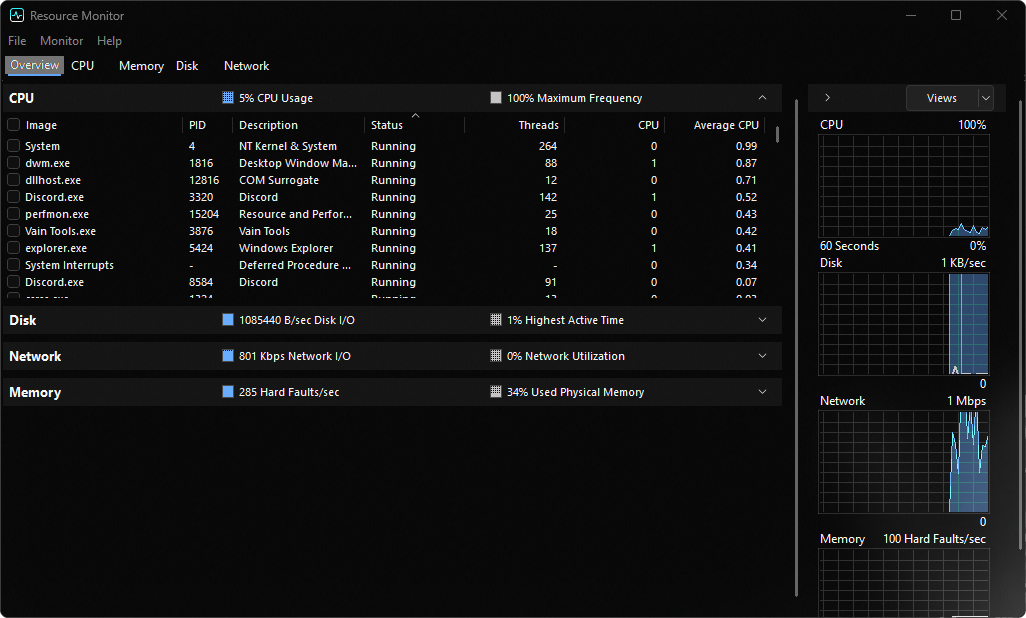
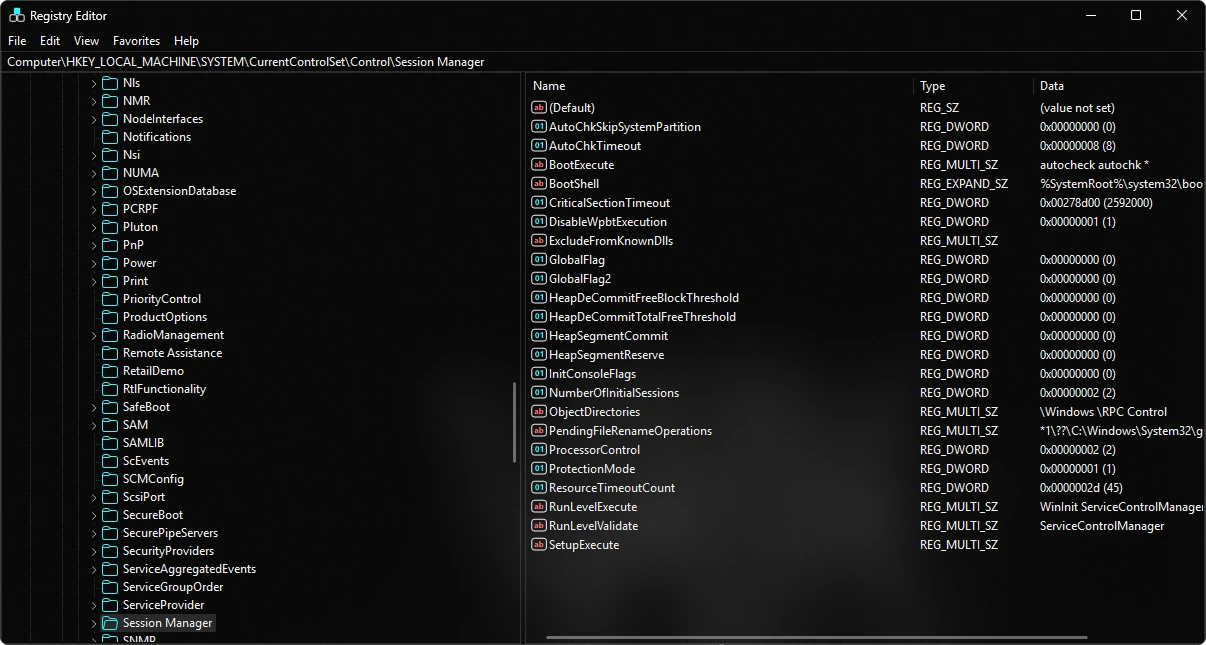
The shell’s dark theme carries into the classic Windows tools: Run, Notepad, Control Panel, Resource Monitor and Registry Editor, with its own icons in place of the stock ones.
Start and search without the extras
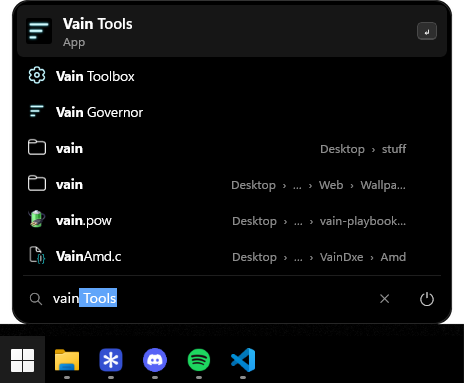
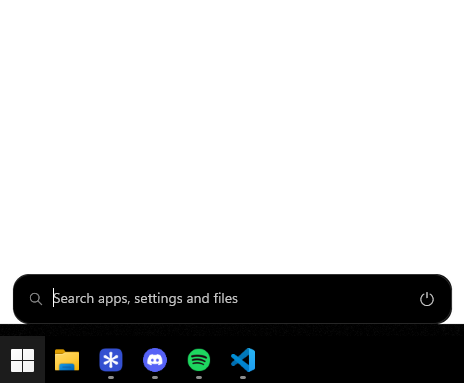
Our own Start menu and search in place of the stock ones: compact, with no recommendations, recent apps or jump lists. Type to search, and apps come first, followed by folders and files with their location.
Power options in one row
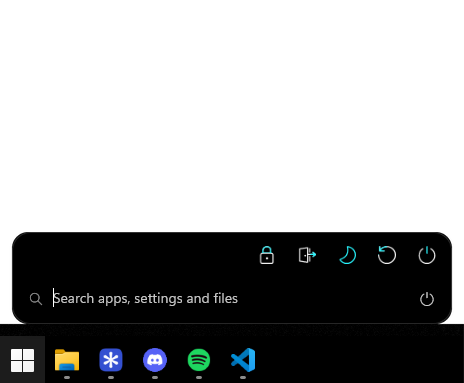
The button at the end of the search bar opens lock, sign out, sleep, restart and shut down in a single row.